


Hey — It's Sandip Das 👋
If you’re a Cloud or DevOps engineer, building your own blog and newsletter is a powerful way to showcase your skills, grow your personal brand, and attract career or freelance opportunities.
If you’re a Cloud or DevOps engineer, building your own blog and newsletter is a powerful way to showcase your skills, grow your personal brand, and attract career or freelance opportunities.
💡
Check out Ghost CMS Manager to Manage any Ghost CMS Site with advance bulk newsletter sending feature with any custom SMTP or natively with AWS Simple Email Service (SES)
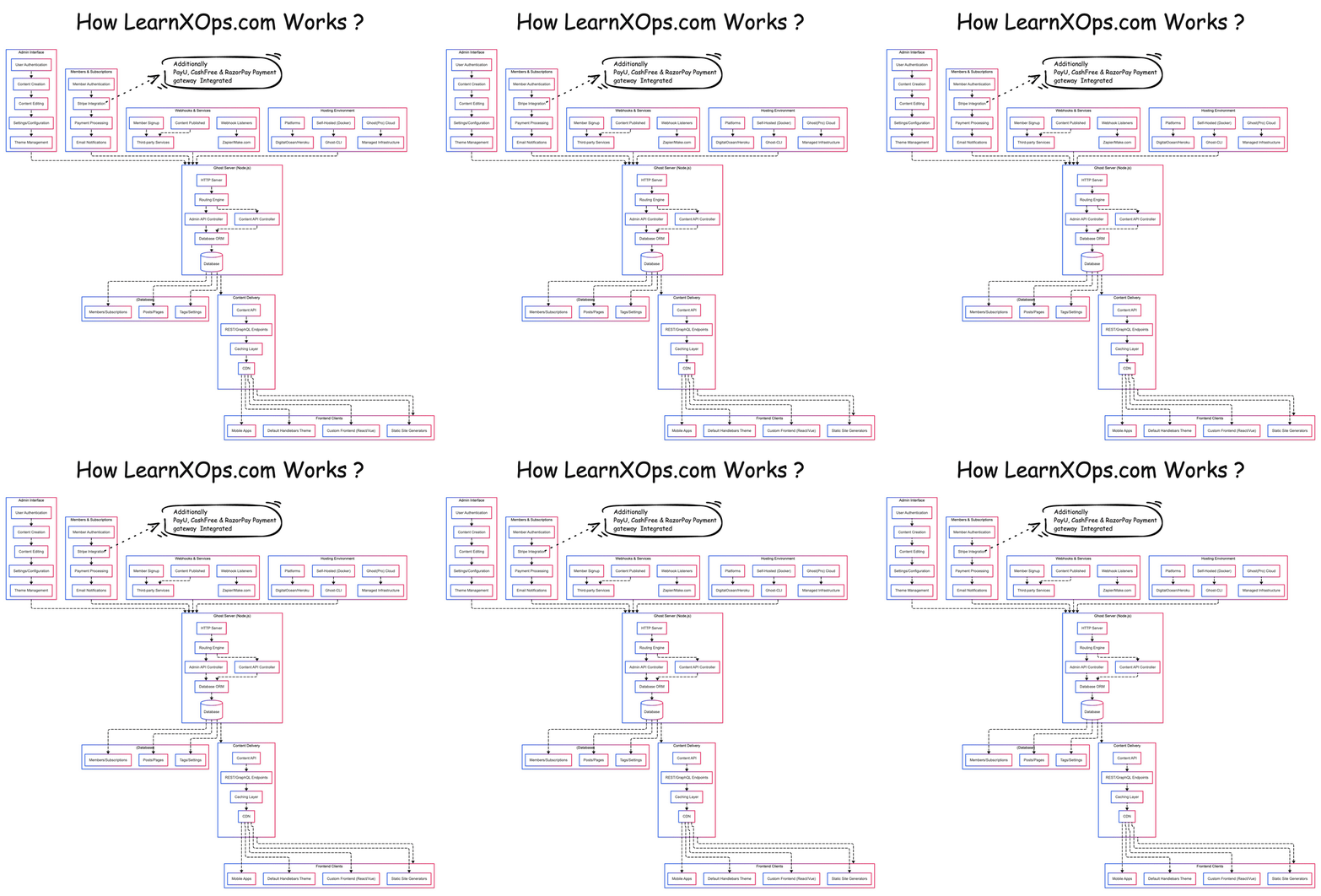
Download a high-resolution copy of this diagram here for future reference.
Above is the architecture of how learnXops.com works! Below are the different components that you need to know before getting started 👇
🧑💼 Admin Interface
- 🔐 User Authentication – Secures access to admin tools.
- ✍️ Content Creation – Write new content with ease.
- 📝 Content Editing – Modify existing content anytime.
- ⚙️ Settings/Configuration – Customize the system behavior.
- 🎨 Theme Management – Change the website’s look and feel.
👥 Members & Subscriptions
- 🔑 Member Authentication – Validates user identity.
- 💳 Stripe Integration – Handles secure payments.
- 💰 Payment Processing – Charges and renewals made easy.
- 📧 Email Notifications – Send automatic member emails.
🔗 Webhooks & Services
- 🧾 Member Signup – Triggers automation on registration.
- ✅ Content Published – Notifies services when new content goes live.
- 🛎️ Webhook Listeners – Receives events from Ghost.
- ⚙️ Zapier/Make.com – Automate workflows with 3rd parties.
🏗️ Hosting Environment
- 🖥️ Platforms – Choose from Docker, Ghost(Pro), or cloud hosts.
- ☁️ Self-Hosted (Docker) – Full control via containers.
- ☁️ Ghost(Pro) Cloud – Managed hosting by Ghost.
- 🌍 DigitalOcean/Heroku – Popular cloud hosting providers.
- 🔧 Ghost-CLI – Easy command-line management.
- 🛠️ Managed Infrastructure – Leave hosting worries behind.
🧠 Ghost Server (Node.js)
- 🌐 HTTP Server – Accepts and serves web requests.
- 🧭 Routing Engine – Directs requests to proper APIs.
- 🛠️ Admin API Controller – Backend admin operations.
- 📚 Content API Controller – Serves content to the frontend.
- 🧬 Database ORM – Manages data mapping to database.
- 🗄️ Database – Stores posts, users, settings, etc.
🗃️ Database Entities
- 👤 Members/Subscriptions – User & billing info.
- 📄 Posts/Pages – The actual published content.
- 🏷️ Tags/Settings – Metadata and configurations.
🚚 Content Delivery
- 🔍 Content API – Exposes content to the outside world.
- 🔌 REST/GraphQL Endpoints – Access data programmatically.
- 🧊 Caching Layer – Speeds up content delivery.
- 🌍 CDN – Distributes content globally with low latency.
💻 Frontend Clients
- 📱 Mobile Apps – Native apps consuming content APIs.
- 🧰 Default Handlebars Theme – Ghost’s built-in frontend.
- 🧑🎨 Custom Frontend (React/Vue) – Build your own UI.
- 📦 Static Site Generators – Jamstack & performance-focused sites.
Let's get started hand's on way:
🧰 Getting Started with Ghost Locally
Here’s a step-by-step guide to run Ghost locally on your machine:
📦 Step 1: Install Prerequisites
# Install Node.js (Ghost recommends Node v16 or v18)
# Use nvm (Node Version Manager) for easier handling
curl -o- https://raw.githubusercontent.com/nvm-sh/nvm/v0.39.7/install.sh | bash
source ~/.bashrc
nvm install 18
nvm use 18

# Install MySQL (required by Ghost)
sudo apt update && sudo apt install mysql-server -y

# Secure MySQL (optional but recommended)
sudo mysql_secure_installation
👻 Step 2: Install Ghost-CLI
sudo npm install -g ghost-cli@latest
🏗️ Step 3: Create a Ghost Project
# Create and move into your Ghost project directory
mkdir ghost-local && cd ghost-local

# Install Ghost locally in development mode
ghost install local
This will start a Ghost blog running locally at http://localhost:2368🔄 Useful Ghost CLI Commands
# Start Ghost
ghost start

# Stop Ghost
ghost stop

# Restart Ghost
ghost restart

# Check status
ghost status

# Update Ghost
ghost update
🧪 Developer Mode
If you're developing themes or want full debugging output:
NODE_ENV=development ghost run
🔐 Optional: Create Admin User for Local Test
Use the Ghost local admin panel at http://localhost:2368/ghost to set up your site and first admin user.
☁️ Getting Started with Ghost on AWS Lightsail
Here’s how to launch Ghost on AWS Lightsail:
🚀 Step 1: Create a Lightsail Instance
- Go to https://lightsail.aws.amazon.com
- Click Create Instance
- Choose Linux/Unix platform
- Select Ghost under "Apps + OS"
- Choose an instance plan (start with the $3.5 or $5/month option)
- Name your instance and click Create Instance
- Read the documentation here
🔗 Step 2: Connect via SSH
# From the Lightsail dashboard, use browser-based SSH or:
ssh -i path/to/your/private-key.pem ubuntu@<your-instance-public-ip>
🔍 Step 3: Get Your Ghost Admin URL
# After login, check setup log
cat /opt/bitnami/var/log/pre-start.log
You’ll see a URL like http://<your-instance-ip>/ghost to finish admin setup.
🔑 Step 4: Setup Ghost Admin
- Visit
http://<your-instance-ip>/ghost - Get Admin Username and Password:
cat bitnami_credentials - Fill the details & login
🔒 Step 5: Enable HTTPS (Optional but Recommended)
# Use Bitnami HTTPS Configuration Tool
sudo /opt/bitnami/bncert-tool
Follow prompts to configure a domain, SSL (Let’s Encrypt), and redirection rules.
📁 Directory Info
- Ghost root:
/opt/bitnami/ghost - Config:
/opt/bitnami/ghost/config.production.json
☸️ Getting Started with Ghost on Kubernetes
Here’s how to deploy Ghost on a Kubernetes cluster:
📦 Step 1: Create Ghost Deployment & Service
apiVersion: apps/v1
kind: Deployment
metadata:
  name: ghost
spec:
  replicas: 1
  selector:
    matchLabels:
      app: ghost
  template:
    metadata:
      labels:
        app: ghost
    spec:
      containers:
        - name: ghost
          image: ghost:5-alpine
          ports:
            - containerPort: 2368
          env:
            - name: url
              value: "http://<your-domain-or-lb>"
          volumeMounts:
            - name: ghost-content
              mountPath: /var/lib/ghost/content
      volumes:
        - name: ghost-content
          persistentVolumeClaim:
            claimName: ghost-pvc
---
apiVersion: v1
kind: Service
metadata:
  name: ghost
spec:
  selector:
    app: ghost
  ports:
    - port: 80
      targetPort: 2368
  type: LoadBalancer
💾 Step 2: Add Persistent Volume Claim
apiVersion: v1
kind: PersistentVolumeClaim
metadata:
  name: ghost-pvc
spec:
  accessModes:
    - ReadWriteOnce
  resources:
    requests:
      storage: 5Gi
🚀 Step 3: Apply All Manifests
kubectl apply -f ghost-deployment.yaml
kubectl apply -f ghost-service.yaml
kubectl apply -f ghost-pvc.yaml
🌐 Step 4: Access Your Ghost Blog
Wait for the LoadBalancer external IP and visit:
http://<external-ip>/ghost
📚 Resources
- Official Docs: https://ghost.org/docs/
- Ghost CLI Guide: https://ghost.org/docs/ghost-cli/
- Troubleshooting: https://ghost.org/docs/faq/
- Ghost Lightsail Guide: https://ghost.org/docs/hosting/aws/
- Bitnami Docs: https://docs.bitnami.com/aws/apps/ghost/
🌐 How to Secure Ghost CMS using Cloudflare Zero Trust
🛡️ Step-by-Step Guide to Add Domain to Cloudflare
- Sign up/Login to Cloudflare
- Go to https://dash.cloudflare.com/ and sign up or log in.
- Add Your Domain
- Click "Add a Site", enter your domain (e.g.,
yourdomain.com), and click "Add Site". - Choose a plan (Free is sufficient for most users).
- Click "Add a Site", enter your domain (e.g.,
- Update Your Domain Nameservers
- Cloudflare will show you new nameservers (e.g.,
cleo.ns.cloudflare.com,ned.ns.cloudflare.com). - Log in to your domain registrar (like GoDaddy, Namecheap, etc.) and replace the current nameservers with Cloudflare's.
- Wait for propagation (can take a few minutes to a few hours).
- Cloudflare will show you new nameservers (e.g.,
- Verify Domain Added
- Once DNS is updated, Cloudflare dashboard will show your site as active.
🔐 Secure Ghost CMS using Cloudflare Zero Trust for FREE OF COST
✅ Prerequisites:
- Ghost CMS running and accessible (e.g.,
https://yourdomain.com) - Cloudflare account with your domain added
📶 Step 1: Set Up Cloudflare Tunnel (Optional for External IPs)
- Install
cloudflaredon your Ghost server:
sudo apt install cloudflared # Debian/Ubuntu
- Authenticate with Cloudflare:
cloudflared tunnel login
- Create and run a tunnel:
cloudflared tunnel create ghost-tunnel
cloudflared tunnel route dns ghost-tunnel ghost.yourdomain.com
cloudflared tunnel run ghost-tunnel
🔒 Step 2: Create Zero Trust Policy
- Go to Cloudflare Dashboard > Zero Trust (zero trust tab).
- Navigate to Access > Applications > Add an Application.
- Select Self-hosted.
- Application Name: Ghost Admin
- Application URL:
https://yourdomain.com/ghost - Session Duration: 8 hours (default)
- Configure Access Policy:
- Who should have access? Choose Email / Google Workspace / GitHub logins, etc.
- Define rules like:
Allow if email ends with @yourcompany.com
- Save and Deploy.
Test the Setup
- Open a private/incognito window and go to
https://yourdomain.com/ghost - You should be redirected to the Cloudflare Access login screen.
- Only allowed users should be able to enter.
🚀 Bonus Tips
- Enable WAF (Web Application Firewall) rules in Cloudflare.
- Use Rate Limiting to prevent brute force attacks.
- Turn on Always Use HTTPS and Automatic HTTPS Rewrites from SSL/TLS settings.
🔐 Cloudflare Zero Trust provides an extra layer of security by allowing only authorized users to access your Ghost CMS — without needing to expose it openly on the internet.


Member discussion